n8n WhatsApp Integration
By Rick, NoCode Guide
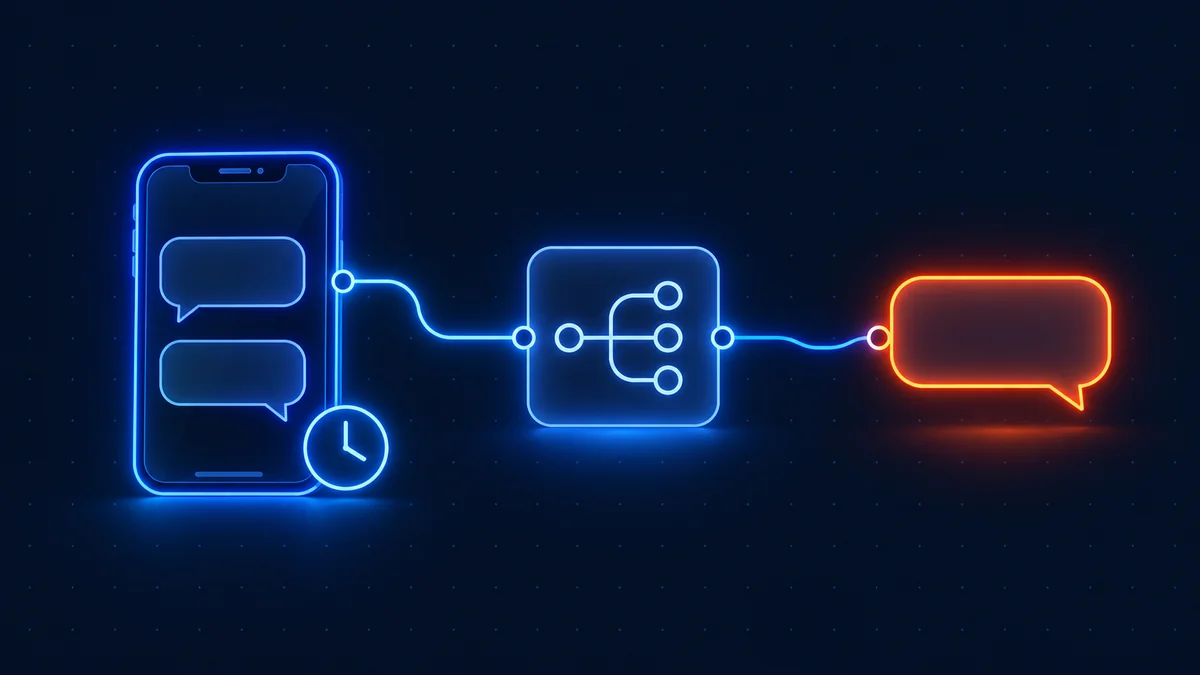
Connect WhatsApp Business Cloud to n8n to receive messages and send automated, AI-powered replies. This guide covers prerequisites, credential setup, the numbered steps, an importable workflow, and troubleshooting.
Prerequisites
- A running n8n instance (self-hosted or Cloud).
- A WhatsApp account with API access enabled.
- Your WhatsApp API key or OAuth credentials to hand.
Credential setup
In n8n, open Credentials → New, search for WhatsApp, and paste your API key or complete the OAuth flow. Save and give it a clear name so you can reuse it across workflows.
Step-by-step setup
Step 1: Add credentials
Create a WhatsApp credential in n8n with your API key or OAuth login.
Step 2: Add the trigger or action node
Drop the WhatsApp node onto the canvas and pick the operation.
Step 3: Import the example workflow
Paste the provided JSON via Import from Clipboard.
Step 4: Test and activate
Run once to confirm, then toggle the workflow active.
Import this workflow
Copy the JSON below, then in n8n choose Import from Clipboard and paste it:
{
  "name": "WhatsApp example",
  "nodes": [],
  "connections": {}
}
Troubleshooting
- 401 / auth errors: re-create the credential and confirm the token scopes.
- Webhook not firing: ensure the workflow is active and your
N8N_WEBHOOK_URLis your public domain. - Rate limits: add a Wait node or batch requests to stay under WhatsApp's limits.
Related: webhook guide and self-hosting hub. Official docs: n8n integrations documentation.
Disclosure: some links on this page are affiliate links. If you buy through them we may earn a commission at no extra cost to you.
Before you build: the WhatsApp constraints that shape everything
WhatsApp automation runs through the WhatsApp Business Cloud API, and the API has rules that no amount of clever workflow design gets around. Knowing them first saves rebuilding later.
The most important is the 24-hour customer service window. Once a customer messages you, you have 24 hours to reply with free-form text. Outside that window, you can only send pre-approved message templates. That single rule determines the architecture of most WhatsApp workflows: a reply bot lives inside the window and can say anything, while notifications, reminders and anything you initiate must be templates submitted for approval in advance.
The second is that you need a Meta Business account, a verified business, and a phone number that is not already registered to a personal WhatsApp account. The setup is the slow part. The n8n side is quick once the credentials exist.
Where n8n earns its keep here
A WhatsApp bot is a loop: a message arrives via webhook, you decide what to do, you reply. In n8n that loop is one workflow with a WhatsApp trigger, whatever logic you need in the middle, and a WhatsApp send node at the end. The billing model matters more here than almost anywhere else, because a conversational bot can involve many steps per message: parse, look up the customer, call a model, format, reply, log. On a task-billed tool each of those is a charge. On n8n the whole exchange is one execution.
That is also why the AI auto-reply pattern on this page is viable. A model call sits in the middle of the loop, the structured response drives the reply, and the cost per conversation stays flat regardless of how many nodes it took.
Mistakes that cost people a day
Testing with your own personal number is the usual first mistake, because it is already registered to the consumer app and the Business API will refuse it. Use a spare number or a virtual one.
Forgetting that webhook verification is a handshake, not a one-time check, is the second. Meta sends a verification request to your webhook URL and expects a specific response, so your n8n instance needs a stable public URL, correctly set in N8N_WEBHOOK_URL, before you can even register the endpoint.
And sending a template that has not been approved yet simply fails silently in some clients. Check approval status in Meta's dashboard before assuming your workflow is broken.
Frequently asked questions
Yes. The WhatsApp node is included in n8n. You only pay for WhatsApp's own plan if it charges for API access.
Copy the workflow JSON below, then in n8n choose Import from Clipboard and paste it. Add your credentials and activate.
Double-check the credential scopes and that your token or API key hasn't expired. Re-create the credential if in doubt.
Yes, the WhatsApp integration works identically on n8n Cloud and self-hosted. See our self-host guide.