n8n Webhooks Integration
By Rick, NoCode Guide
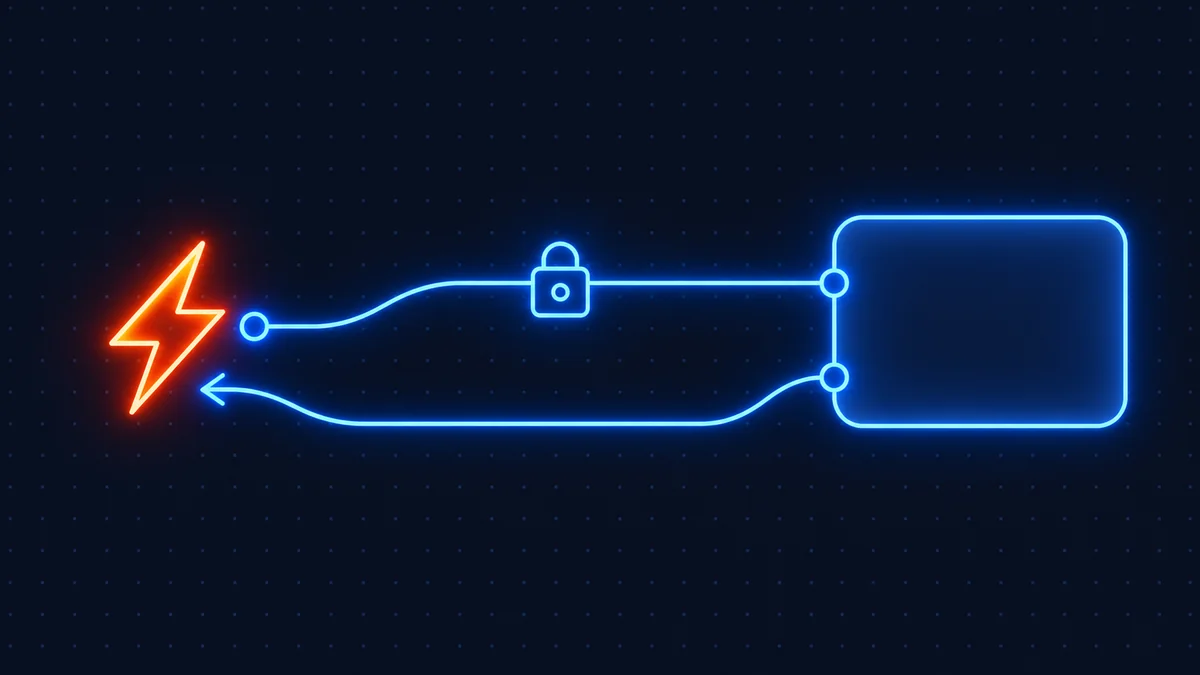
Master the n8n Webhook and Respond to Webhook nodes for triggers, responses, and auth. This guide covers prerequisites, credential setup, the numbered steps, an importable workflow, and troubleshooting.
Prerequisites
- A running n8n instance (self-hosted or Cloud).
- A Webhooks account with API access enabled.
- Your Webhooks API key or OAuth credentials to hand.
Credential setup
In n8n, open Credentials → New, search for Webhooks, and paste your API key or complete the OAuth flow. Save and give it a clear name so you can reuse it across workflows.
Step-by-step setup
Step 1: Add credentials
Create a Webhooks credential in n8n with your API key or OAuth login.
Step 2: Add the trigger or action node
Drop the Webhooks node onto the canvas and pick the operation.
Step 3: Import the example workflow
Paste the provided JSON via Import from Clipboard.
Step 4: Test and activate
Run once to confirm, then toggle the workflow active.
Import this workflow
Copy the JSON below, then in n8n choose Import from Clipboard and paste it:
{
  "name": "Webhooks example",
  "nodes": [],
  "connections": {}
}
Troubleshooting
- 401 / auth errors: re-create the credential and confirm the token scopes.
- Webhook not firing: ensure the workflow is active and your
N8N_WEBHOOK_URLis your public domain. - Rate limits: add a Wait node or batch requests to stay under Webhooks's limits.
Related: webhook guide and self-hosting hub. Official docs: n8n integrations documentation.
Disclosure: some links on this page are affiliate links. If you buy through them we may earn a commission at no extra cost to you.
Test URL versus production URL
Every n8n Webhook node has two addresses, and confusing them is the single most common webhook problem. The test URL only listens while you have clicked "listen for test event" in the editor, and it stops the moment you leave the page. The production URL listens whenever the workflow is active. People wire the test URL into an external service, see it work once during setup, and then wonder why nothing arrives the next day. Register the production URL with the external service and activate the workflow.
Both addresses are built from N8N_WEBHOOK_URL. If that variable is not set to your instance's real public address, n8n will hand out URLs pointing at wherever it thinks it lives, often localhost or an internal hostname, and external services will fail to reach it with no useful error on your side. Set it before you build your first webhook, not after.
When to respond, and with what
The Webhook node's response mode decides when the caller gets an answer. "Immediately" returns a response the instant the webhook is hit, before the workflow runs, which is right for anything where the caller does not care about the result and just needs to know you received it. "When last node finishes" holds the connection open until the workflow completes and returns whatever the last node produced, which is right when the caller is waiting for data.
The third mode uses a separate Respond to Webhook node placed wherever you want in the workflow, which gives you full control: you can validate the input, respond with a specific status code and body, and keep processing afterwards. This is the mode to learn properly, because it handles the awkward cases. Slack slash commands, for example, need an acknowledgement within three seconds, so you respond immediately with a holding message and do the real work after.
Securing a public endpoint
A production webhook URL is a public address that runs your workflow when called. Treat it accordingly.
The Webhook node supports header authentication and basic authentication directly. Use one of them for anything that matters, so a leaked or guessed URL is not enough to trigger the workflow. For services that sign their payloads, such as Stripe or GitHub, verify the signature in the workflow before acting on the data, because a valid-looking payload from an unknown sender should be rejected rather than processed.
Keep the URL itself out of public code and documentation. n8n generates a long random path for each webhook, which is reasonable protection against guessing, and none at all against a URL committed to a public repository.
Debugging a webhook that does nothing
Work from the outside in. First confirm the external service is actually sending: most have a delivery log that shows the request and the response code they received. A 404 means the workflow is not active or you registered the test URL. A timeout means your instance is not reachable at that address, which usually means N8N_WEBHOOK_URL, a firewall, or TLS. A 200 with no workflow execution visible means it reached n8n but a different workflow or an inactive one.
Then check n8n's executions list with "all" selected rather than just errors, because a webhook that ran and produced nothing visible will be there as a success. If you still see nothing, send a request yourself with curl and the exact headers the service uses. Nine times out of ten the problem is the URL, and the tenth time it is the response mode.
Frequently asked questions
Yes. The Webhooks node is included in n8n. You only pay for Webhooks's own plan if it charges for API access.
Copy the workflow JSON below, then in n8n choose Import from Clipboard and paste it. Add your credentials and activate.
Double-check the credential scopes and that your token or API key hasn't expired. Re-create the credential if in doubt.
Yes, the Webhooks integration works identically on n8n Cloud and self-hosted. See our self-host guide.
Related integrations
Connect Google Sheets to n8n with OAuth to append, update, and read rows automatically.
Add GPT models to n8n for summaries, replies, and structured data extraction.
Send Slack messages from n8n, build slash-command bots, and route alerts to channels.