
n8n Error Handling: Retries, Error Outputs, and Alerts That Actually Reach You
By Rick Kennerknecht, NoCode Guide
August 15, 2026
Last verified: August 2026
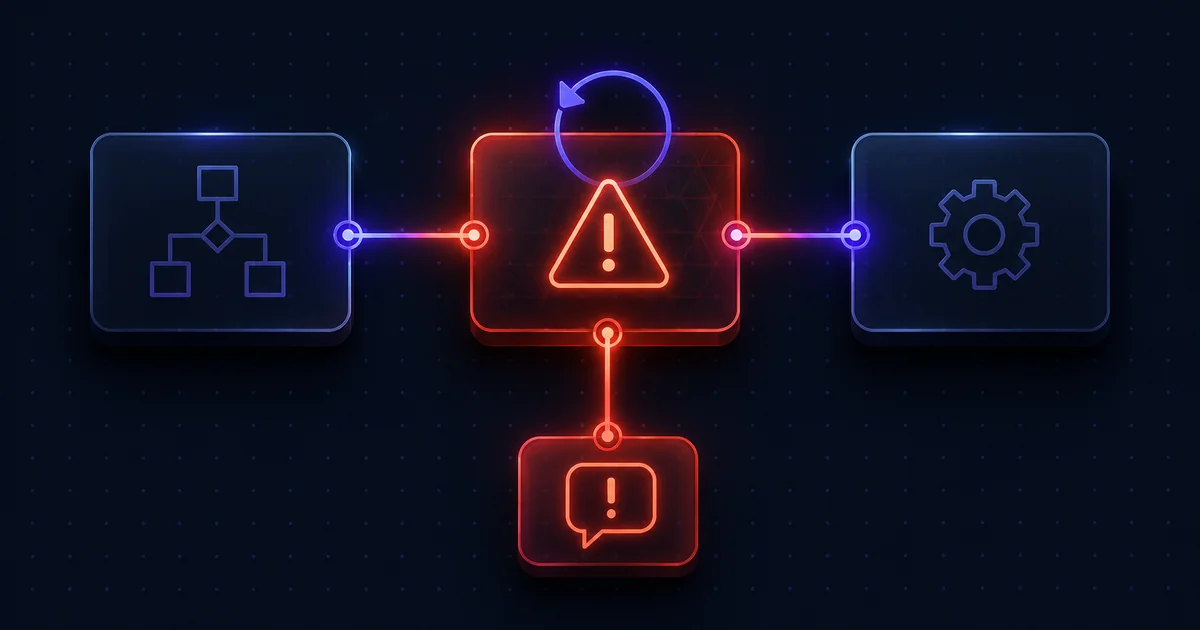
n8n error handling works in three layers: Retry On Fail on the node, On Error routing on the node, and an Error Trigger workflow at the workflow level. Set all three and a failed run retries itself, sends bad records down a side branch instead of killing the execution, and pings you in Slack, rather than failing silently at 3 a.m. and waiting for you to notice.
Most n8n setups have none of the three. This walks through all of them, in the order worth adding them, with an importable error handler at the end.
Why n8n workflows fail quietly by default
There is no built-in failure notification in n8n. When a production execution fails, it lands in the Executions list with a red status and nothing else happens: no email, no banner, no retry. The workflow simply did not do its job that time.
That is fine for a workflow you watch. It is a problem for the ones you built, activated, and forgot: the nightly sync, the lead router, the invoice poller. Those fail on a Tuesday, and you find out when someone asks why a record is missing.
Layer 1: Retry On Fail, for failures that fix themselves
Most failures in a real n8n instance are transient: an API timed out, a rate limit hit, a database connection dropped. The same call would succeed a second later.
Open the node, click the Settings tab, and turn on Retry On Fail. Two fields appear:
- Max Tries, how many attempts in total. Two or three covers almost everything.
- Wait Between Tries (ms), 1000 by default. For a rate-limited API, push it to 5000 or higher; retrying instantly against a 429 just burns your quota faster.
Turn it on for anything that talks to the outside world: HTTP Request nodes, API integration nodes, database nodes. Leave it off for pure data-shaping nodes like Set or Code, where a retry will fail identically every time.
The gotcha worth knowing before you build around it: Retry On Fail behaves the way you would expect only when the node's On Error setting is left on Stop Workflow. Combine retries with either "Continue" option and the retries get skipped, or the node stays flagged as errored even after a retry succeeds. This has been reported against n8n repeatedly, see the open GitHub issue on incompatible error handling options. Practical rule: one mechanism per node. Retries, or error routing, not both.
Layer 2: On Error, for deciding what should stop the run
Directly under Retry On Fail in the same Settings tab is On Error, with three choices. Which one you want depends entirely on whether the step is allowed to fail.
| On Error setting | What happens | Use it when |
|---|---|---|
| Stop Workflow (default) | The node fails, the execution fails, and the error workflow fires. | The step must succeed: a payment write, a database insert, anything where a half-finished run is worse than no run. |
| Continue | The error is passed along the normal output to the next node and the run carries on. | Rarely. The error object flows downstream looking like data, which hides problems more often than it solves them. |
| Continue (using error output) | The node grows a second output. Successful items leave through the first, failed items through the error branch. | The step is optional or the batch is large: an enrichment lookup that is nice to have, or a loop over 500 records where a handful will 404. |
The error output branch is the single biggest upgrade most workflows can make. It turns "the whole run died on record 87" into "483 records processed, 17 flagged", and gives you somewhere to log the 17.
Layer 3: the Error Trigger workflow, for the alert
This is the piece almost nobody sets up, and it is the one that saves you.
- Create a new workflow. Make the first node an Error Trigger.
- Name the workflow something obvious, Error Handler, and save it. You do not need to activate it.
- Connect the Error Trigger to whatever you want to be notified through: Slack, Telegram, Gmail, or an HTTP Request to a webhook.
- Now open a workflow you actually care about. Click Options > Settings, find the Error workflow dropdown, choose Error Handler, and save.
Repeat step 4 for every production workflow. One Error Handler can serve all of them. n8n's error handling documentation covers the full behaviour, and the Error Trigger node reference lists every field in the payload.
What the Error Trigger receives is a single JSON item containing the workflow's name and ID, the error message, the name of the last node that executed, and the execution ID and URL, the URL being the useful one, because it links straight to the failed run. Two caveats: those execution fields only exist if executions are being saved to the database, and if the failure happened in the trigger node itself, the payload has a different shape (more trigger{}, less execution{}). Write your alert message so a missing field degrades to blank rather than breaking the alert workflow too.
The thing that trips everyone up: you cannot test an error workflow by clicking Test workflow. The Error Trigger only fires on automatic executions. To confirm it works, break a node on purpose and let the real trigger fire: a schedule, or a webhook call from your terminal.
Copy-paste: a Slack alert error handler
Import this into n8n from the workflow menu (⋮ > Import from Clipboard), then replace the placeholder Slack webhook URL with your own. It uses a plain HTTP Request node so it needs no credentials to test.
{
  "name": "Error Handler",
  "nodes": [
    {
      "parameters": {},
      "name": "Error Trigger",
      "type": "n8n-nodes-base.errorTrigger",
      "typeVersion": 1,
      "position": [260, 300]
    },
    {
      "parameters": {
        "method": "POST",
        "url": "https://hooks.slack.com/services/REPLACE/WITH/YOUR-WEBHOOK",
        "sendBody": true,
        "specifyBody": "json",
        "jsonBody": "={\"text\": \"n8n failure: {{ $json.workflow.name }}\\nError: {{ $json.execution.error.message }}\\nLast node: {{ $json.execution.lastNodeExecuted }}\\nExecution: {{ $json.execution.url }}\"}",
        "options": {}
      },
      "name": "Slack Alert",
      "type": "n8n-nodes-base.httpRequest",
      "typeVersion": 4.2,
      "position": [520, 300]
    }
  ],
  "connections": {
    "Error Trigger": {
      "main": [[{ "node": "Slack Alert", "type": "main", "index": 0 }]]
    }
  }
}
If you would rather post through a proper Slack credential (threads, channels, rich formatting), swap the HTTP Request node for the Slack node and follow the n8n Slack integration setup. To send alerts somewhere n8n has no node for, an outbound webhook covers it.
Stop And Error: failing on purpose
Not every problem throws an exception. An API can return 200 with an empty array. A lookup can succeed and return the wrong customer. Those are the failures that quietly corrupt data downstream.
The Stop And Error node lets you make them loud. Put an IF node in front of it to check your assumption (the array has items, the ID field is populated, the total is above zero) and route the bad branch into Stop And Error with a custom message like "Invoice sync: API returned zero line items." The execution fails, your error workflow fires, and the message that lands in Slack tells you exactly what was wrong. Stop And Error has to be the last node on its branch.
After the alert: retrying the failed run
Open Executions, filter by status Error, and open the failed run. Each one offers a retry, either with the workflow as it is saved now, or with the version that was live when it failed. Use the current version after you have pushed a fix; use the original when you are confirming the failure was transient.
Retries depend on the failed execution's data still being stored. On a self-hosted instance, that is controlled by environment variables, and if you are trimming your database to save disk, trim successful executions, not failed ones. Losing the error data is losing your ability to recover the run. Managed instances handle retention for you; the trade-offs are covered in n8n Cloud vs self-hosted.
The five-minute reliability pass
Run this on your instance today:
- One Error Handler workflow exists and posts somewhere you actually read.
- Every activated workflow has it selected under Options > Settings > Error workflow.
- Every node that calls an external API has Retry On Fail on, with On Error left at Stop Workflow.
- Every optional step uses Continue (using error output) instead of taking the run down with it.
- Your instance is on a version you chose deliberately, see how to update n8n without breaking your workflows, and the Docker install guide if you are pinning versions for the first time.
Numbers one and two take about five minutes and cover the majority of the risk. The rest you can add workflow by workflow as you touch them.
Frequently asked questions
No. The Error Trigger only fires for workflows that have been pointed at it. Open each workflow, go to Options > Settings > Error workflow, and select your Error Handler. The one exception: a workflow that contains an Error Trigger node uses itself as its own error workflow by default.
Error workflows only fire on automatic executions. Clicking Test workflow in the editor will not trigger them, no matter how badly the run fails. To test, let the real trigger fire (a schedule, a webhook call, or a polling trigger) with a node deliberately broken.
Not reliably. Retry On Fail behaves as documented when On Error is set to Stop Workflow. Combine it with either Continue option and the retries are effectively ignored, or the node is still flagged as errored even when a retry succeeded. This is a long-standing, repeatedly reported behaviour. Pick one mechanism per node.
The nodes and settings are identical. The difference is execution data: self-hosted instances control how long failed executions are kept through environment variables, and the retry-from-the-executions-list feature needs that data to exist. On Cloud, retention is handled for you by your plan.
A node retrying five times inside a single run is still one execution. Retries at the node level do not multiply your usage. Re-running a failed workflow from the Executions list does start a new execution. That distinction matters if you are close to a plan ceiling.
Anything the Error Trigger can connect to works: Telegram, Gmail, a generic Send Email node, or an HTTP Request to a webhook of your own. The error payload is just JSON, so you can format it however the destination expects.
Related guides
Updating n8n takes about five minutes: back up your data folder, pull the new Docker image, and rest
Last verified: August 2026 The fastest way to learn n8n is to import a working workflow and take it
Last verified: October 2026 n8n workflows are chains of nodes that start with a trigger, pass data b